

Assisted permissions are now generally available in GitHub Copilot CLI, the GitHub Copilot app, and Visual Studio Code, according to GitHub’s changelog. When Copilot wants to run a command, reach a file path, or open a URL, a large language model evaluates the request. Requests it classifies as clearly safe go ahead on their own. Everything else still waits for your approval.
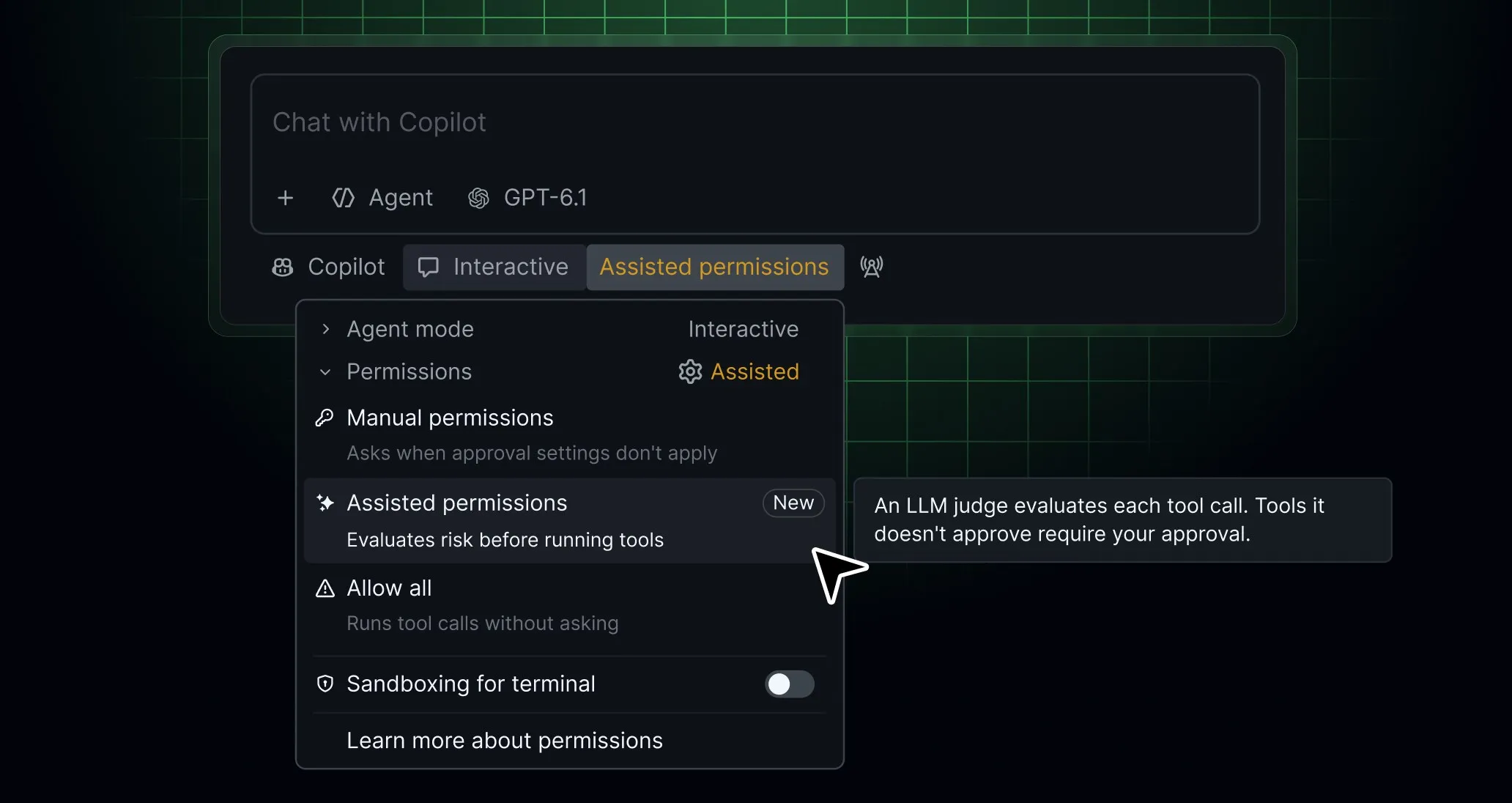
Without it, you choose between approving every step by hand and allowing everything. Assisted mode sits between the two: you stop clicking through routine requests, but the unusual ones still reach you.
Where to switch it on
- Copilot CLI: run
/permissions, then select assisted. - Copilot app: open the mode picker, click Tool permissions, then select Assisted.
- Visual Studio Code: open the permissions picker, then select Assisted permissions.
A model’s approval is not a guarantee
Each decision is a model’s judgment, and GitHub has published no error rate for it, so a request judged safe can still be one you would have refused. In a project with production credentials or customer data, keep manual approval. GitHub’s guide, Allowing safe commands to run without manual approval, explains how requests are evaluated and when approval is still required.
Anthropic’s Claude Code uses a similar design in its auto mode, and one researcher showed a chain of ordinary-looking steps getting past it. That test did not involve Copilot, but it shows why a model’s approval is not proof that a command is safe.
Controls for organizations
Enterprise administrators can block Allow All while keeping Assisted available, or disable Assisted separately. They can also set the default permission mode for new sessions. Developers can still choose any other mode their policy permits. If the default is unavailable or prohibited by policy, the session starts with manual approval.
End of article